5 free photo tools that never upload your images
Strip location data, compress, remove backgrounds and move photos between devices — five free tools that do it all in your browser, so your pictures stay yours.
· 7 min read · by zernonia
Most "free online" photo tools work by uploading your picture to someone else's server, processing it there and sending the result back. For a stock photo, who cares. For a picture of your kids, your house, your passport or a client's unreleased product, that upload is the part you should care about most — and it is usually the part the site mentions least.
Browsers are now powerful enough that most of this work does not need a server at all. These five free tools do everything on your own device: the image is opened in the browser tab, processed there and saved from there. Nothing is uploaded, and none of them needs an account.
1. EXIF Viewer — see what your photo gives away, then remove it
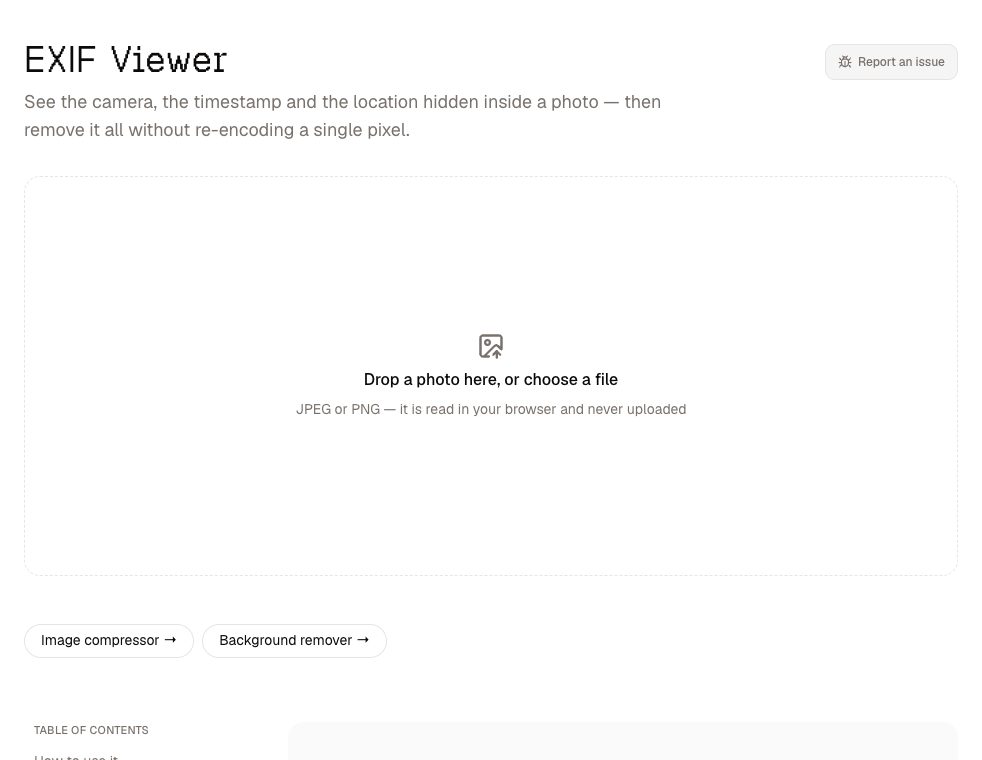
Every phone photo carries metadata, called EXIF: the camera model, the exact time, and very often the GPS coordinates of where it was taken — accurate enough to find a front door. Some platforms strip it on upload; many places you send a file directly, like email and messaging attachments sent as files, do not.
The EXIF viewer shows you everything in a photo, then downloads a copy with the metadata removed. It does that losslessly: JPEG and PNG keep their image data and metadata in separate segments, so the image data is copied across byte for byte and nothing is re-compressed. The colour profile is kept, because it describes how to display the pixels, not who took them.
If a photo has a location, the viewer can show it on a map — but only when you press the button. The map tiles come from OpenStreetMap and the request would carry the coordinates, so it never loads on its own.
2. Image Compressor — smaller files without a round trip
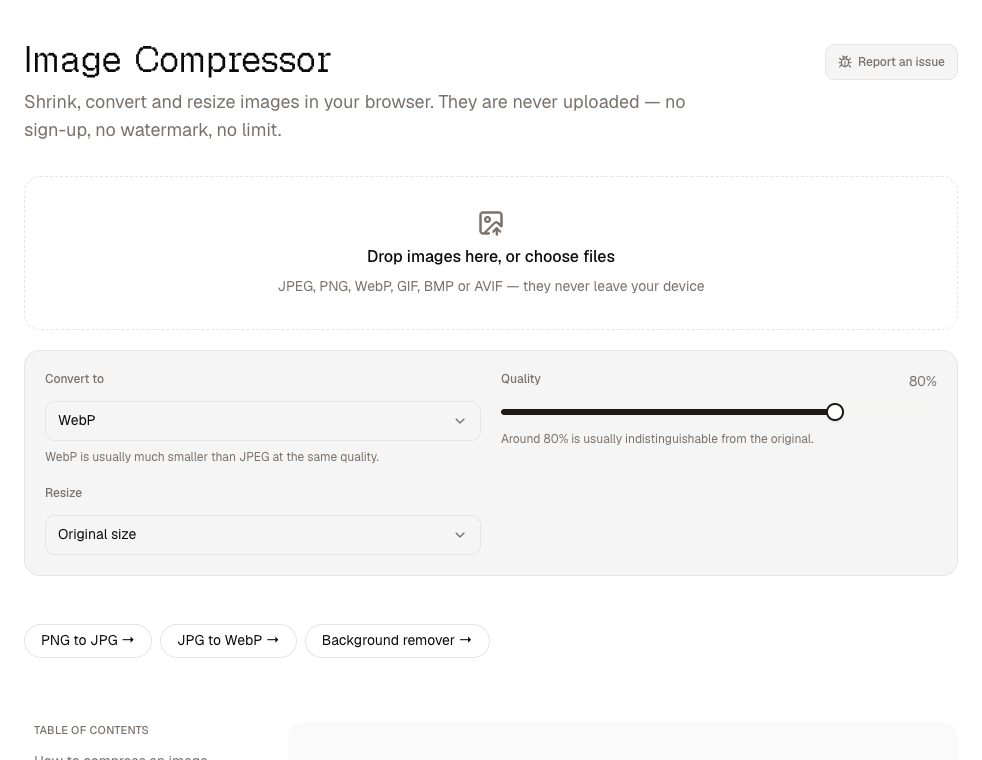
The image compressor resizes, compresses and converts JPEG, PNG and WebP images in a batch, shows exactly how much each one shrank, and saves them individually or as a zip. When it shrinks a large photo it steps down in halves rather than one big jump, because a single jump makes the browser skip most of the pixels and the result looks jagged. It also handles PNG to JPG and JPG to WebP .
One honest limit: it cannot read HEIC, the format iPhones save in by default, because only Safari can decode it. Rather than work for some visitors and silently fail for the rest, it does not accept it. Setting your iPhone's camera to "Most Compatible" saves JPEGs instead.
3. Background Remover — the AI runs on your computer
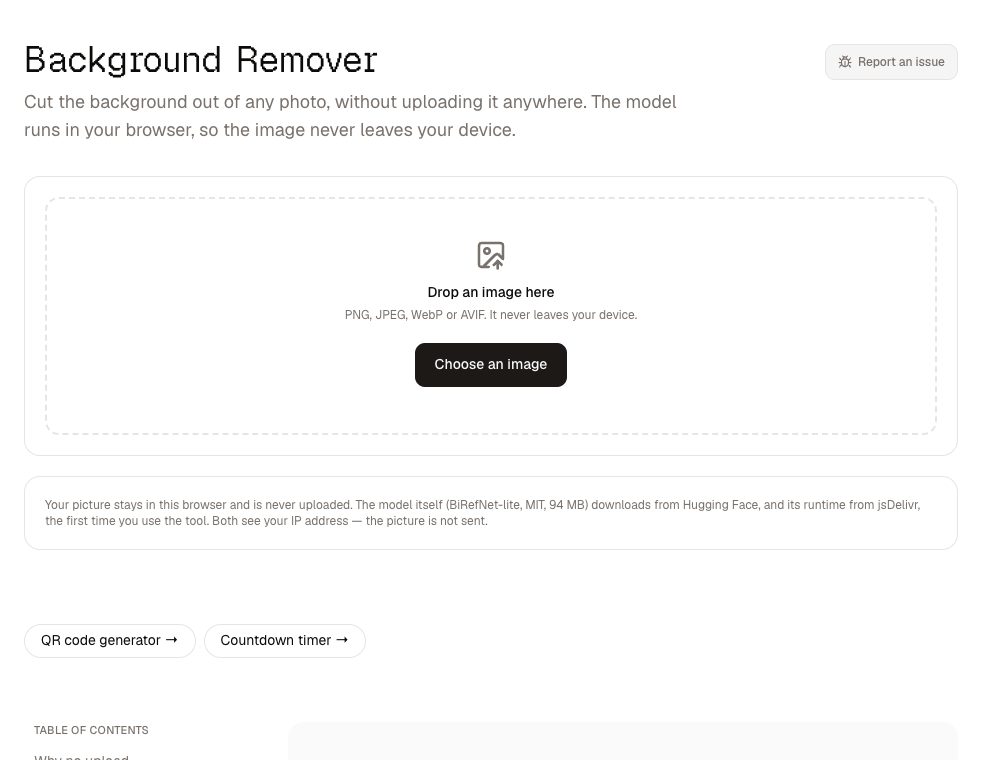
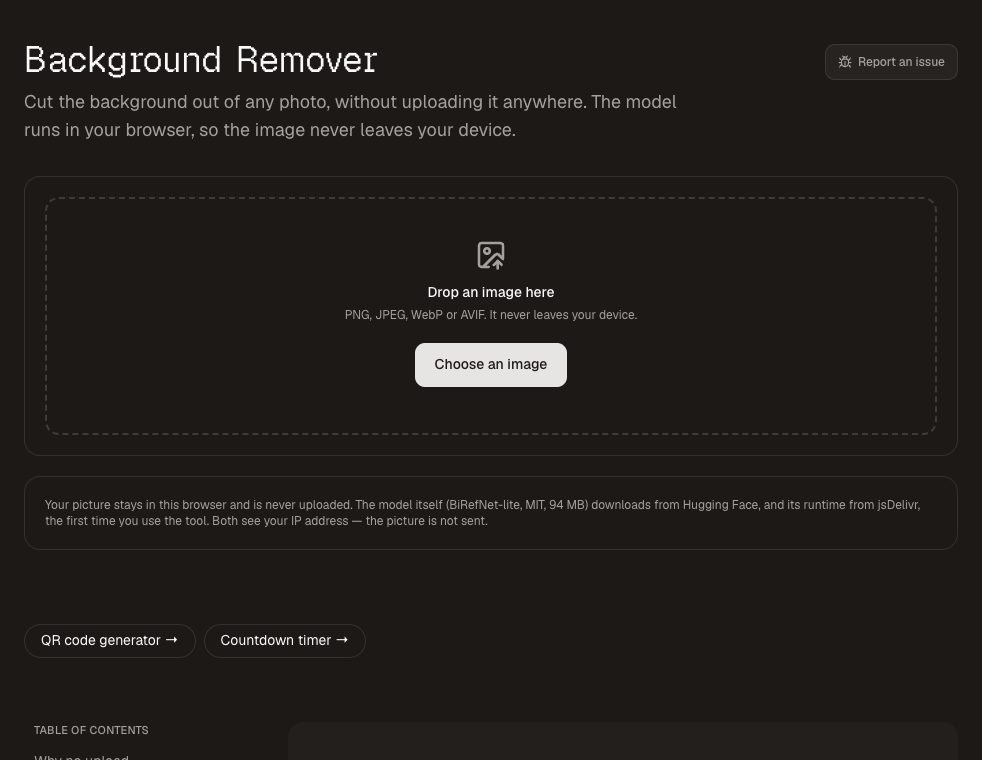
Background removal is the classic "upload and wait" job, because it needs an AI model. The background remover downloads the model to your browser once and runs it on your own computer. Your photo is cut out locally and saved as a transparent PNG, or placed on a solid colour. No credits, no watermark, no upload.
4. Send to Device — phone to laptop without the cloud
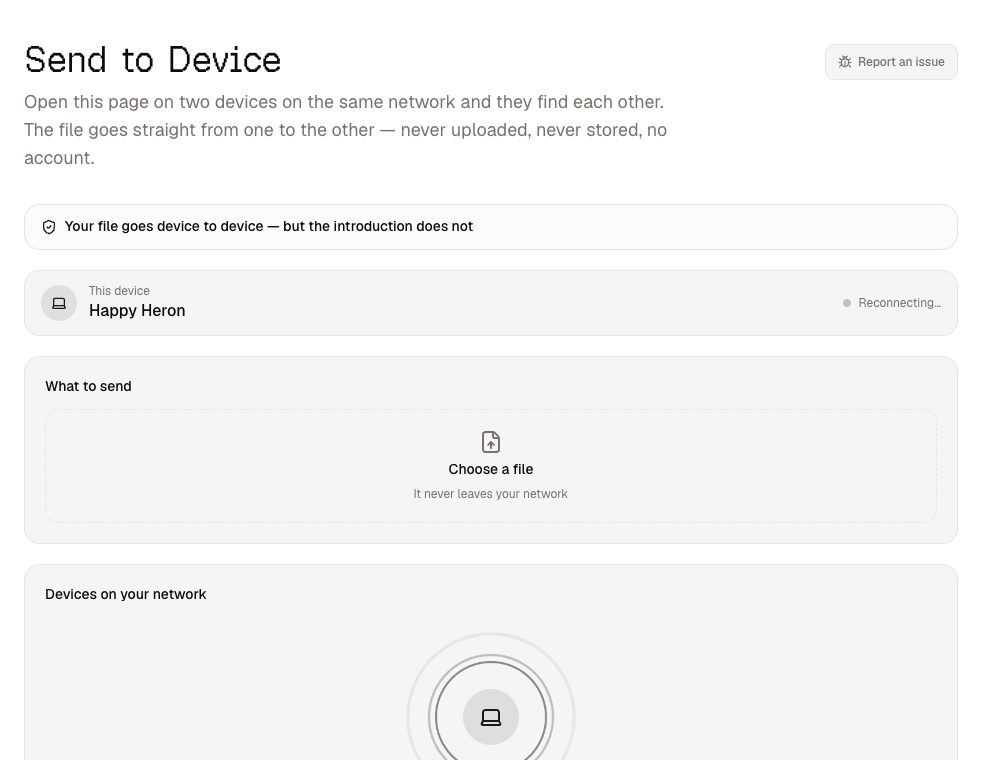
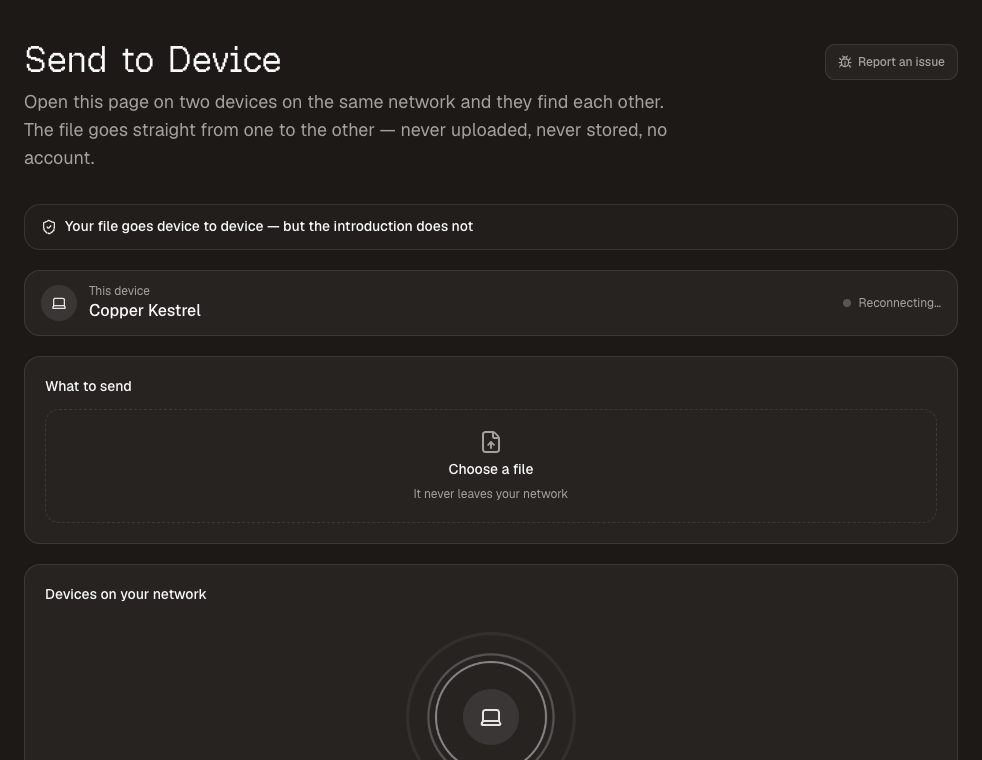
The usual way to get a photo from your phone to your computer is to email it to yourself or drop it in a cloud folder — both of which put a copy on a server. Send to device opens the page on both devices, they find each other on your network, and the photo goes directly from one to the other over an encrypted connection. Our server only introduces the two devices; it never sees the file, and there is no size limit from us.
The trade-off: both devices must be on the same network. That is not an oversight — with no relay in the path, there is nowhere else for the file to go. And every transfer asks the receiver before anything is accepted.
5. Favicon Generator — your logo, every size
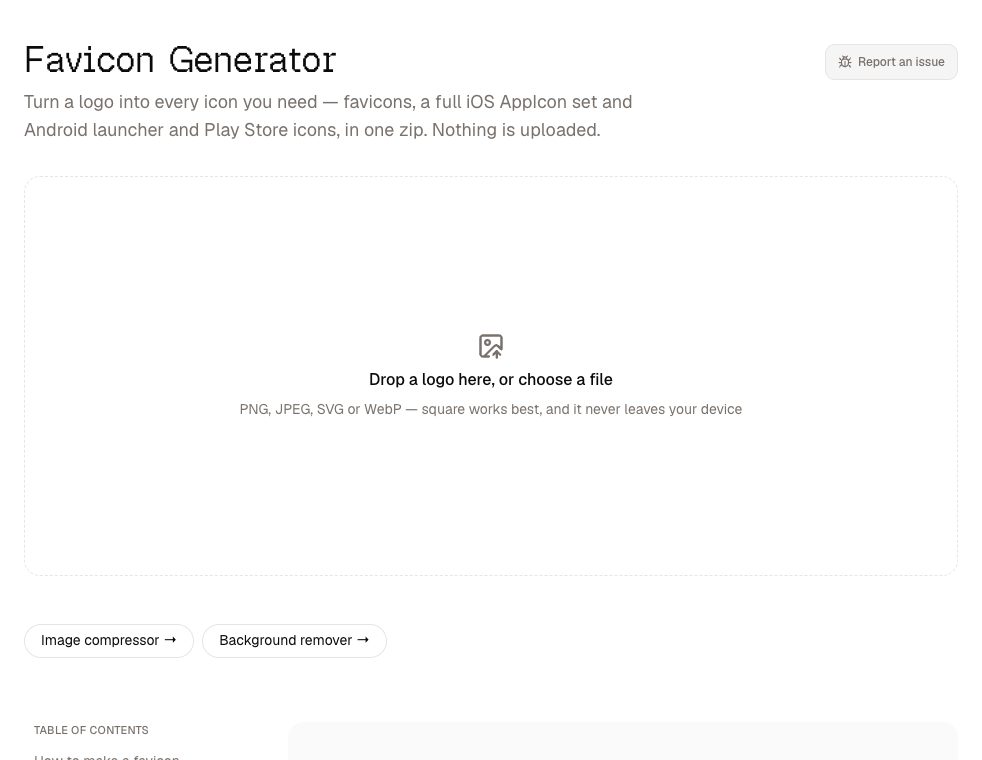
If the photo in question is your logo, the favicon generator turns it into every icon a website or app needs — favicon, Apple touch icon, Android and iOS app icons and a web manifest — rendered in the browser and saved as one zip. An unreleased brand never has to leave your laptop to get its icons made.
How to check a tool really does not upload
You do not have to take a website's word for it. Open your browser's developer tools (F12, or Cmd+Option+I on a Mac), switch to the Network tab, then use the tool. If your photo is uploaded, you will see a request roughly the size of the file going out. On the tools above you will not — the background remover's model download comes in, once, and is then cached.
Everything here is also open source, so the claim can be checked in the code as well as in the network panel.